

Setting Up Direct Deposit Switch
This guide explains how to set up Direct Deposit Switch using the Get Direct Deposit Switch Token endpoint. Before performing this procedure, you may want to read the Direct Deposit Switch guide for general information on the user experience and use cases.
Result of following this procedure
Cardholders can use your interface to set up direct deposit into an account they hold with you.
Setup
You must integrate with the third-party direct deposit switch (DDS) provider through its SDK. Obtain the documentation from the DDS provider at this link. SoFi Tech Solutions must also perform setup steps on the back end.
Workflow
These are the entities involved in DDS:
- Account holder — Your customer, who has at least one account on your platform
- Your system — Your mobile app or web page, which has a control to launch the DDS process.
- SoFi Tech Solutions — The system
- SDK — Interfaces with the switch provider
- Switch provider — Interfaces with the deposit provider
- Payroll provider — Paycheck distributor such as ADP, an employer, or a government benefits distributor
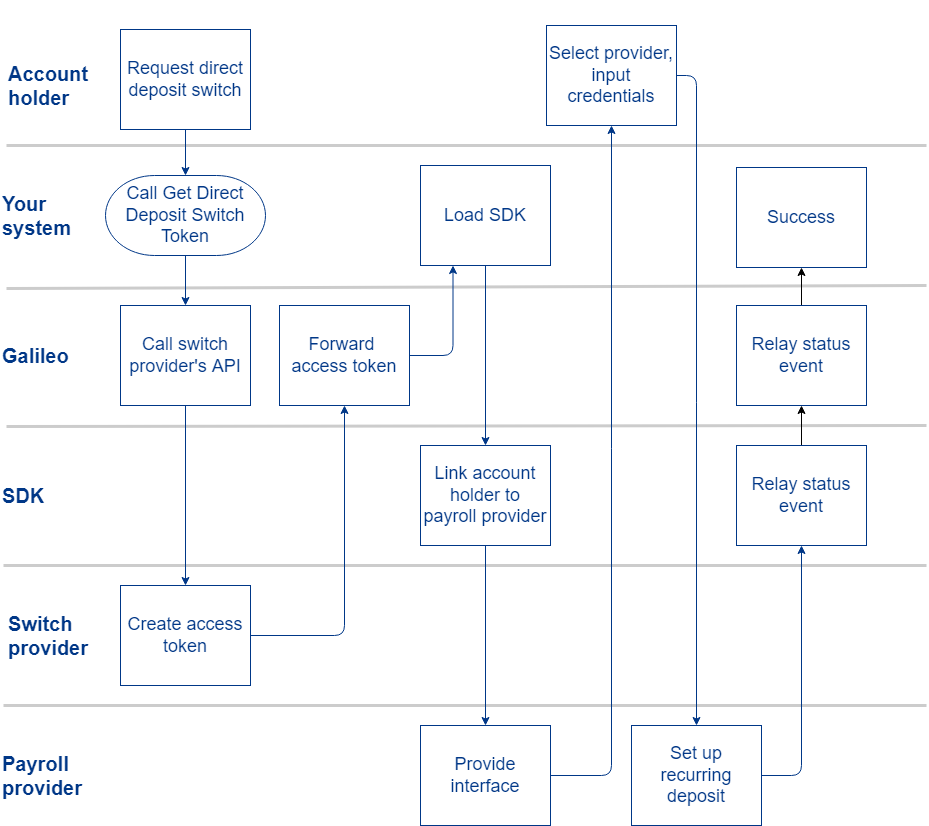
Direct Deposit Switch workflow
- Your customer creates a new account on your platform, or the account holder already has an account on your platform.
- The account holder activates an "add direct deposit" control on your interface.
- You call the Get Direct Deposit Switch Token endpoint and pass the routing and account numbers of the account that will receive the deposit.
- SoFi Tech Solutions forwards the token request to the switch provider, which generates the token.
- SoFi Tech Solutions forwards the token to you in the endpoint response.
- The SDK calls the payroll provider's interface and passes the account holder's account and routing numbers.
- The payroll provider returns its interface, which you present to the account holder.
- The account holder selects the deposit provider from the interface and inputs their login credentials.
- SoFi Tech Solutions sends the
DDSE: direct_deposit_switch_eventevent message to you withstatus: processing. - The payroll provider sets up a recurring deposit (ACH credit) with the routing and account numbers previously supplied.
- The DDS provider returns a webhook message to SoFi Tech Solutions that reports success.
- SoFi Tech Solutions sends the
DDSE: direct_deposit_switch_eventevent message to you withstatus: completed.
When the payroll provider sends the deposit, it arrives at SoFi Tech Solutions as an ACH credit in a Nacha file. When the deposit is posted to the customer account, SoFi Tech Solutions sends a BPMT: pmt event message. The otype is a code that SoFi Tech Solutions sets up for you to indicate direct deposits.
Example scenarios
These scenarios explain how to implement Direct Deposit Switch for checking and savings accounts.
Scenario 1: Deposit into a checking account
- Issuer name — CardOfMine. Routing number 33333
- Customer name — Adela Sanchez
- Adela Sanchez opens a DDA with CardOfMine. The PRN is 77777.
- Adela clicks the "direct deposit" control on CardOfMine's interface. Adela indicates that she wants the direct deposit to go into this new DDA.
- The interface asks her to provide a description for the deposit. She inputs
My Job Paycheck. - CardOfMine's interface calls Get Direct Deposit Switch Token with these values:
| Parameter | Value |
|---|---|
accountNo | 77777 |
ddSwitchAccountNo | 77777 |
ddSwitchRoutingNo | 33333 |
ddSwitchAccountType | checking |
ddSwitchAccountDescription | My Job Paycheck |
- SoFi Tech Solutions passes the values to the DDS provider in a token request.
- The DDS provider returns the token and SoFi Tech Solutions forwards it to CardOfMine's interface.
- CardOfMine's interface loads the SDK, passes the token, and retrieves the direct deposit interface.
- Adela selects her paycheck provider and logs in using her company credentials.
- Adela specifies that 50% of her paycheck should go to her CardOfMine account.
- The paycheck provider creates a recurring ACH credit transaction using the account number 77777 and routing number 33333. The transaction parameters also include the fact that the CardOfMine account is a checking account.
- On pay day, Adela's paycheck provider sends half of her paycheck to her CardOfMine account.
- Later, SoFi Tech Solutions receives the deposit in a Nacha file
- SoFi Tech Solutions posts the deposit (payment) to Adela's account.
Scenario 2: Deposit into a savings account
- Issuer name — IssueMyCard. Routing number 44444
- Customer name — Karl Schwartz
- Karl signs up for a checking account and accompanying savings account with IssueMyCard.
- IssueMyCard creates the checking account as a primary account (PRN: 22222) and creates the savings account as a secondary account (PRN: 88888) to the checking account.
- Karl clicks the "direct deposit" control on IssueMyCard's interface. Karl indicates that he wants all of the direct deposit to go into his new savings account.
- The interface asks him to provide a description for the deposit. He inputs
Deposit to Savings. - IssueMyCard's interface calls Get Direct Deposit Switch Token with these values:
| Parameter | Value |
|---|---|
accountNo | 22222 |
ddSwitchAccountNo | 88888 |
ddSwitchRoutingNo | 44444 |
ddSwitchAccountType | savings |
ddSwitchAccountDescription | Deposit to Savings |
- SoFi Tech Solutions passes the values to the DDS provider in a token request.
- The DDS provider returns the token and SoFi Tech Solutions forwards it to IssueMyCard's interface.
- IssueMyCard's interface loads the SDK, passes the token, and retrieves the direct deposit interface.
- Karl selects his paycheck provider and logs in using his company credentials.
- Karl specifies that all of his paycheck should go to his IssueMyCard savings account.
- The paycheck provider creates a recurring ACH credit transaction using the account number 88888 and routing number 44444. The transaction parameters also include the fact that the IssueMyCard account is a savings account.
- On pay day, Karl's paycheck provider sends all of his paycheck to his savings account.
- Later, SoFi Tech Solutions receives the deposit in a Nacha file
- SoFi Tech Solutions posts the deposit (payment) to Karl's account.
Events API
During the direct deposit switch process, SoFi Tech Solutions sends the DDSE: direct_deposit_switch_event Account Event when the status of the deposit setup changes. This event is first triggered when SoFi Tech Solutions generates a token and sends it to you in the endpoint response. Subsequent status changes also trigger this event message.
The possible values for status and old_status are:
processing— The direct deposit transactions are being set up.completed— The direct deposit switch has been successfully set up.failed— The direct deposit switch process failed.
When status: failed, the status_reason field is populated by one of the values in the Direct Deposit Switch Failure Status Reasons enumeration.
Viewing Direct Deposit Switches
Request the Direct Deposit Switch CDF, which contains all of the direct deposit switch transactions from the previous day.
Updated 6 days ago